
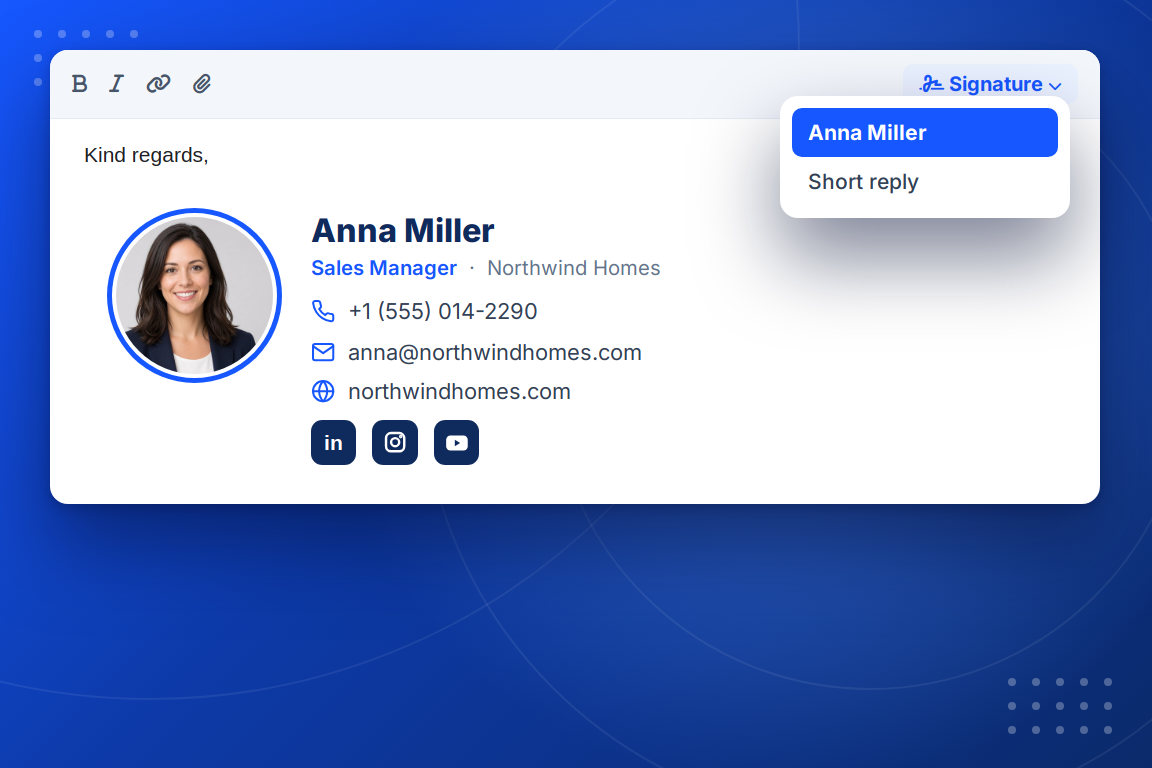
Each version of Outlook keeps its signature settings in a different place. Here is where:
Settings, Account, Signatures. Click New signature, paste, pick it for new messages and replies, and Save.
Click Email it to me in the editor and copy the signature from that email. Then File, Options, Mail, Signatures, New, paste and OK.
If Outlook asks to download pictures, allow them for that sender.
Paste it once. Every change after that appears by itself.
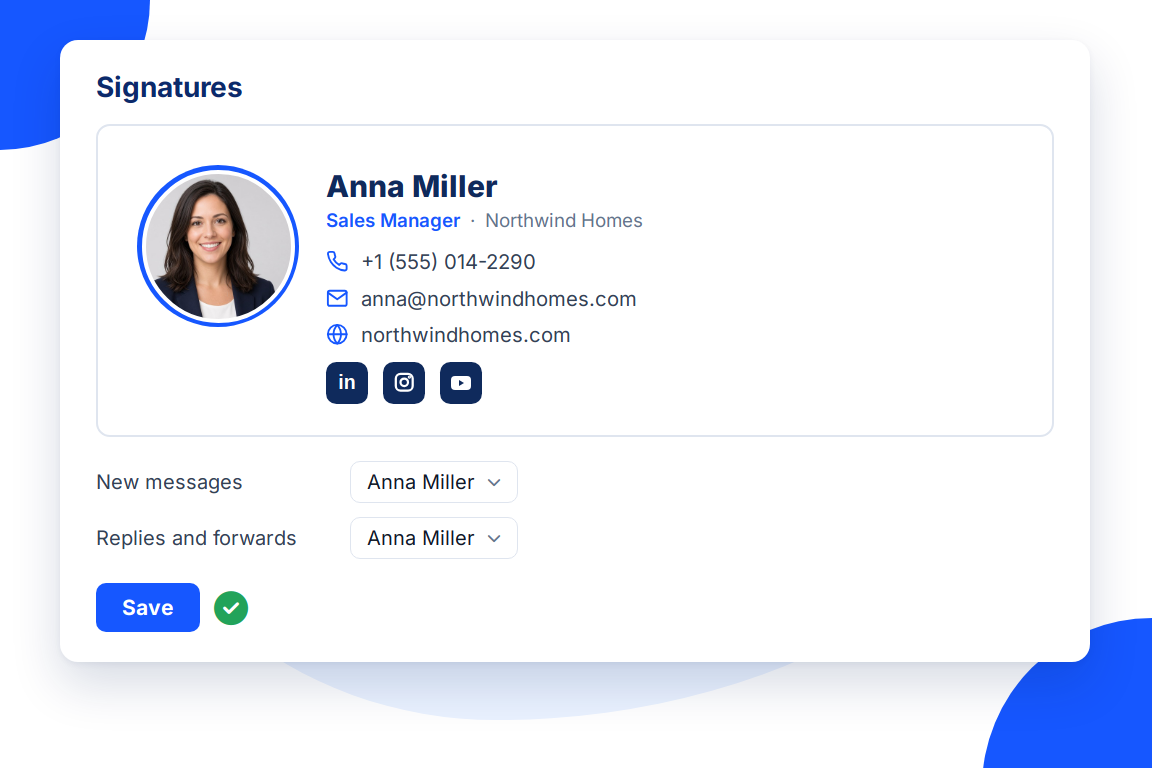
You paste your signature into your mail program once. Everything after that happens in BrandBits.
Name, title, phone, website and a photo or logo. Watch the preview inside a real-looking email.
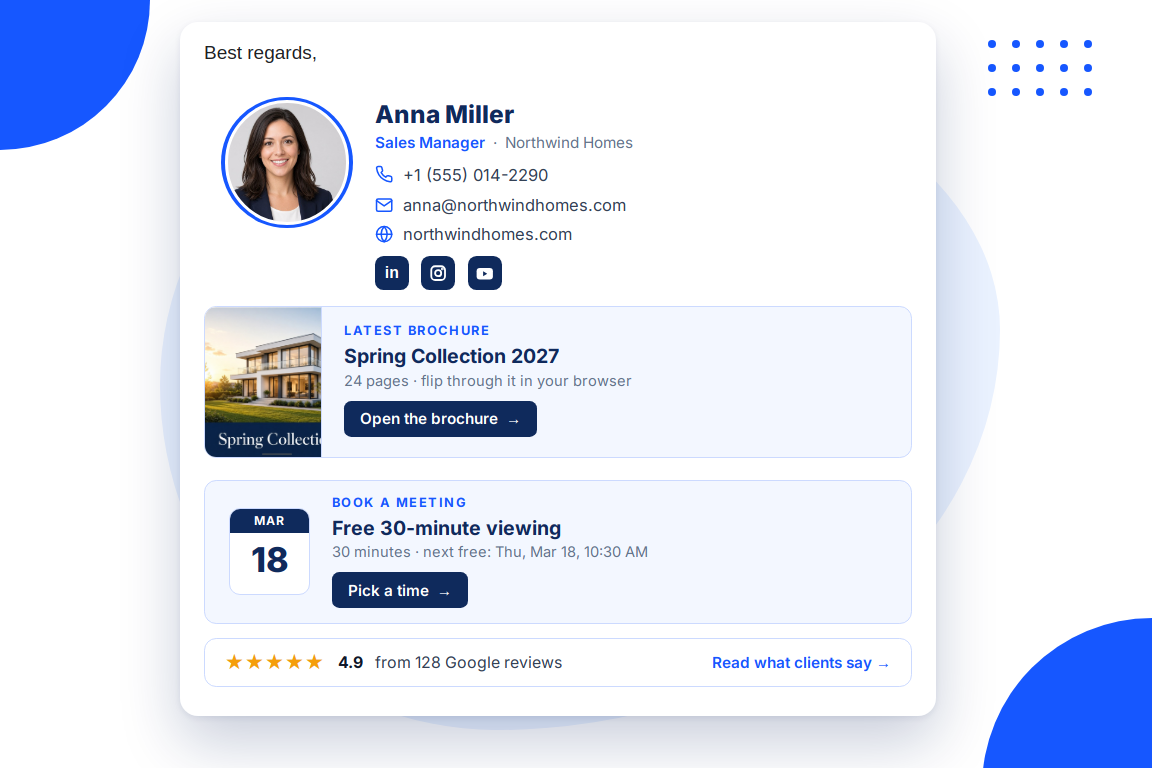
Up to three cards under your details: a brochure, a booking, your rating, a countdown or a banner.
Follow the steps for Gmail, Outlook, Apple Mail or your iPhone. Every later change shows up by itself.
Your signature can show live content from the BrandBits tools you already use. It updates by itself, so every email shows what is current.
You send more emails than any other kind of message, to people who already know you. The signature is the one part of every one of them you control.
Pictures inside a plain table: the layout Outlook displays most reliably.
Outlook on the web, the new Outlook and Outlook for Windows each get their own instructions.
Change the signature once in BrandBits instead of on each machine.
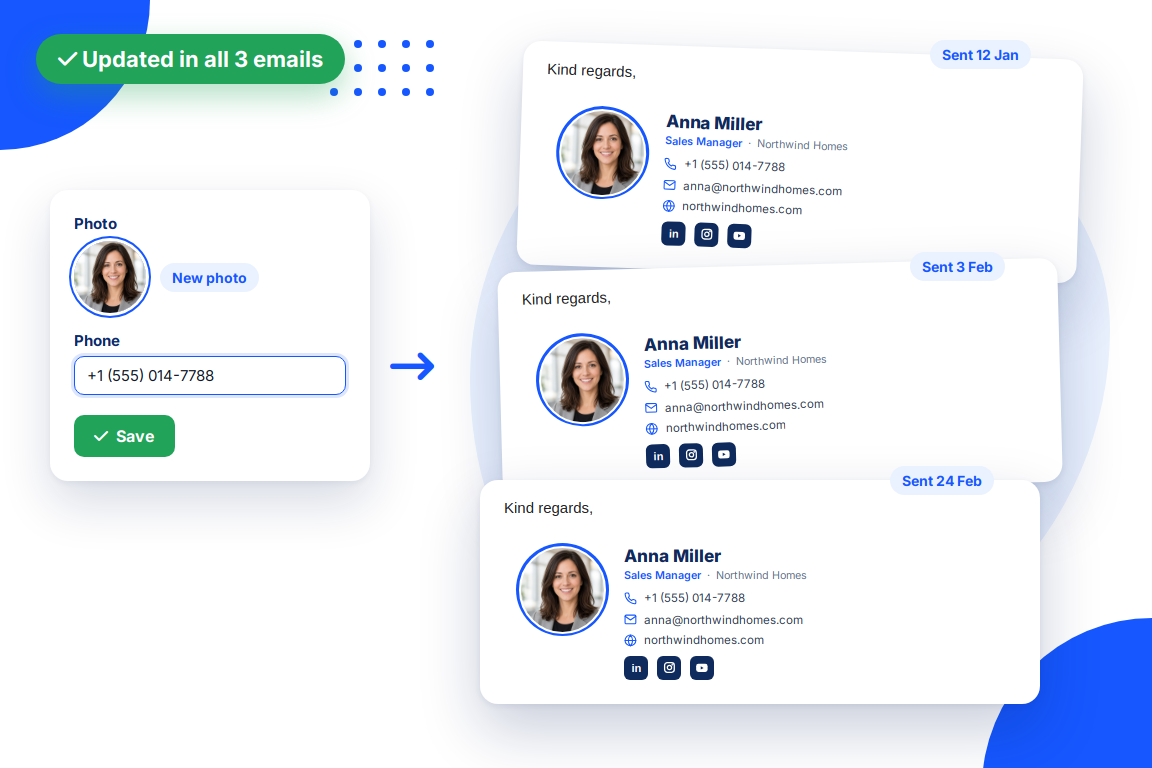
Saved changes appear in old and new emails without pasting again.
With your Outlook signature in place you can:
Ring, circle, rounded or square crop for a photo, an uncropped frame for a logo, or your initials in your colours.
Five ready-made colour sets or your own brand colours, in a modern or a classic font.
Up to six, from LinkedIn and Instagram to WhatsApp and YouTube.
Your latest flipbook with its cover, switching by itself when you publish a new one.
Read from your real availability, so people can book you straight from an email.
Your rating and review count from the review sources you have connected.
Saved changes appear in old and new emails alike, and live cards refresh every 15 minutes.
Every click counted per link, with an estimate of how often your signature is seen.
Everything below is made with the same signature generator.
What a good signature looks like for a realtor, a clinic, a consultant, a shop or a restaurant.
Email Signature ExamplesStart from a clean template, add your details and colours, and paste it into any mail program.
Email Signature TemplateA clean business email signature that looks the same in every inbox and never goes out of date.
Professional Email SignatureAdd your company logo or a photo to your email signature, sharp and correctly sized in every mail program.
Email Signature with LogoPromote an offer, an event or a new brochure in every email, and change it without pasting a new signature.
Email Signature BannerHow to add a professional signature with a photo and links to Gmail, step by step.
Gmail SignatureIn Outlook on the web or the new Outlook, open Settings, Account, Signatures, edit or create a signature and save. In Outlook for Windows, go to File, Options, Mail, Signatures. With a signature from BrandBits you only paste it once; later changes appear by themselves.
Outlook can hold back pictures until the reader allows them, especially from a new sender. Once they allow pictures from you, the signature shows normally. This applies to every signature with images, not only this one.
With most Outlook signatures, yes, and again every time it changes. With a signature from BrandBits you paste it once per computer, and every change after that appears by itself.
Your subscription includes a full toolkit. Here are a few:
Turn PDFs into interactive, shareable flipbooks.
Create clean, engaging slide presentations online.
Shoppable, shareable photo galleries that sort themselves by interest.
Collect ratings and feedback with simple, embeddable widgets.
See traffic and conversions in one simple view.
Let visitors book appointments straight into your calendar.
Branded short links you can repoint anytime, with click stats.
A signature that updates itself, even in emails you already sent.
Capture emails with popups, floating bars and slide-ins.
Show your Instagram, TikTok and Facebook posts on your site.
Answer visitor questions 24/7 and hand over real leads.
Run promotions where visitors act to win and spread the word.
Send newsletters and simple automations to your leads.
Publish articles with built‑in testing and engagement tracking.